1099 NECs…WHAT???

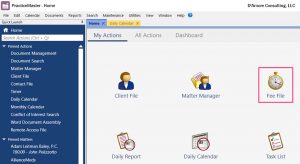
The New 1099 NEC Form
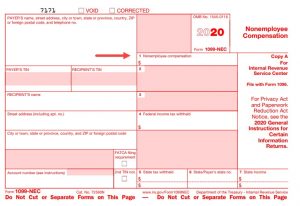
Previously, Box 7 on the 1099-Misc form was for Non-Employee Compensation.


The IRS is moving this to a whole new form – the 1099-NEC. They have also changed Box 14 for Gross Proceeds paid to another attorney to be Box 10 instead.


The filing deadlines have been changed, so has the number of forms that can be submitted physically vs e-file. Previously, if you were submitting more than 250 forms, you had to e-file. This has been reduced to 100 forms.


There are two methods of e-filing. Nelco’s paid service can be used from Tabs3 software. Or you can use the 1099 disk file option in the software and submit the forms electronically.


Tabs3 will be handling all of this with both the printed forms and with electronic filing in Version 2020 and higher of APS and TAS


HOWEVER, they will not be changing Version 19 to generate the 1099-NEC form.
IMPORTANT!
You will need to be on the latest version of Tabs3 APS for this!
Hide Document Assembly in PracticeMaster

Hide the Merge Process in PracticeMaster!
Back in version 19 an update was made to the document merge feature that allows you to hide the assembly process. This has been shown to enhance the performance of the merge and can be especially helpful with large templates.

See below for more information and instructions on how to add the “Hide Assembly” variable to your templates.

HIDING ASSEMBLY
When document templates are very large and complex, they can cause the assembly process to slow down, or even cause the server’s message queue to overflow and cause automation errors. This occurs most often in a Remote Desktop Services (formerly Terminal Services) environment. Hiding the document assembly process may prevent the error(s), as fewer messages are processed.

Beginning with Version 19.1.5.420, you can use a variable named “HideAssembly” to assemble templates without showing the assembly process. Most templates will run just fine with assembly shown, so this only needs to be added if you are experiencing automation errors. To add this variable to your merge template follow these steps:

1. On the first line of the document, position the cursor at the beginning of the line and click the variable button.
2. Expand the Internal Variables group.
3. Select Alpha Variable.
4. Click OK.
5. Enter a Name of “HideAssembly”.
6. Select Do not insert text into document.
7. Leave the Initial Value field empty.
8. Select Never Prompt.
9. Select Compress line if result is blank.
10. Click OK.
11. Save the template and rerun the assembly process.

The variable will look similar to «HideAssembly|Alpha Variable|Do not insert text into document» or «Var|31|1|1|||1|%H|HideAssembly|Alpha Variable»

PracticeMaster Timezones

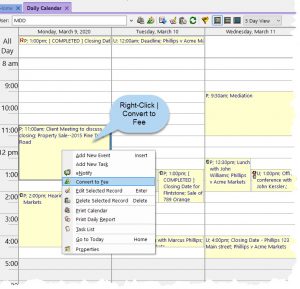
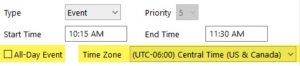
Tabs3’s PracticeMaster Calendar Now Supports Time Zones!

PracticeMaster allows you to specify a time zone for events and tasks. If you opt to enable the time zone feature, new calendar records will be shown relative to the local time for each user.

Also, we got the “All Day Events” checkbox back in September of 2019 – did that get added to your calendar form? Sometimes it’s tucked away down near the bottom of the screen and needs to be moved up.

Attach Vendor Invoice to APS Invoice

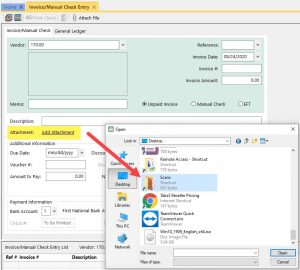
Ever wished you could attach a vendor’s bill to your invoice in Tabs3 Accounts Payable? Well now you can!!


Save backup information right along with your invoice in APS by clicking on Add Attachment and then browsing to wherever you store your scanned invoices or other backup documentation.


Version 20.1.8.804 02/17/2020

Larger Fields in PracticeMaster

What’s New in Tabs3 & PracticeMaster? Larger fields, that’s what!

If you have ever hurt yourself trying to cram a client’s name, work description, name search or contact information into the client file…

If you have ever uttered an expletive through gritted teeth after running out of room entering a check number…

If you have ever worried that your statement numbers were getting too big…

If you have ever had to tap your creative genius trying to squish 100 characters of identifying text into a 50 character field for LEDES billing…

THEN I THINK YOU ARE GOING TO BE REALLY HAPPY
with the latest Tabs3 & PracticeMaster v2020 updates!

Click Here to See What’s New in Version 2020

Here is a short sample of what to expect:

  • Client Name Increased from 50 to 255 chrs
  • Name Search Increased from 16 to 50 chrs
  • Work Description Increased from 50 to 255 chrs
  • Misc Lines 1, 2 & 3 Increased from 50 to 255 chrs

    Over the next two weeks I’ll be sending additional emails highlighting different features. Mostly new, and some old, and I think it may be more than 7 😉

    Let me know if you’d like assistance with getting v2020 installed*

    *Please note that maintenance is required with v2020.

Maintain Static Notes in the Matter Manager in PracticeMaster

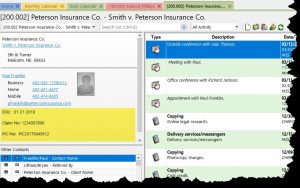
PracticeMaster’s Matter Manager has been updated to show Miscellaneous Lines 1, 2 & 3

These fields are typically available on the Setup page in the Client File for both Tabs3 & PracticeMaster.

Please Note: If you are using Tabs3 Billing, notes which are not preceded with an asterisk may print on your statements. Please see the screenshots below for additional information.

Example showing asterisk (this will keep the comment from printing on the bill):

Example showing no asterisk (this comment could print on the bill depending on settings):

Practice Management…and what else? (Email Management)

Don’t back yourself into a corner! If you’re using Tabs3 or if you’re already using PracticeMaster, it’s worthwhile to find out what else it can do!
I’d like to review four other things you can do with PracticeMaster even if you’re not using it for case management:
1.      Document Management
2.      Email Management
3.      Marketing Management
4.      Collections Management
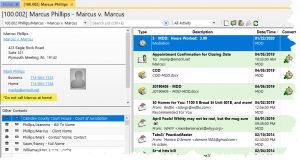
Today’s focus is on Email Management. I’ve been journaling my emails in PracticeMaster for as long as I can remember. I love being able to see them in my Matter Manager Activity List, but they can get a little hard to manage. So a few years back I devised an email management system that lets me track my emails more easily.
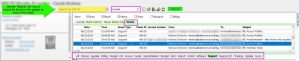
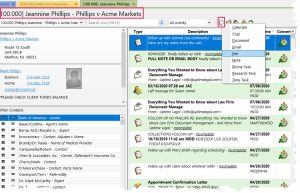
Here’s what it looks like – note the folders at the bottom of the list:
Notice I have a folder called SCHED (scheduling) – I use this to track scheduling emails while keeping them out of the rest of my categories. SUPPORT is the most common eMail type that I use.
Here’s what I Did:
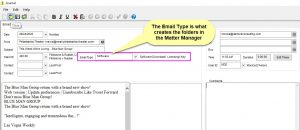
    • I created a new look-up field called Email Type which I assign to all emails of substance that I save to PM
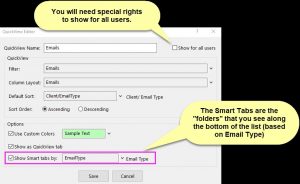
    • I created a Quick View Tab in the Matter Manager Journal file called “Email”:
    • It picks up only email records
    • It is set up to include Smart Tabs (the folders that you see along the bottom of the list); in my example they include support, quotes, agenda, billing, etc., but these can be customized to suit your firm’s organizational structure